Transcript – Apple WWDC 2015 Keynote – Special Event June 2015
Speakers:
Tim Cook – CEO, Apple Inc.
Craig Federighi – SVP, Software Engineering, Apple Inc.
Jennifer Bailey – VP, Apple Pay
Susan Prescott – VP, Application Product Management
Kevin Lynch – VP Technology
Jimmy Iovine – Beats co-founder
Eddy Cue – SVP, Internet Software and Services
Listen to the Audio MP3 here: Apple WWDC 2015 Keynote – Special Event June 2015 Full – MP3 Audio
Tim Cook – CEO, Apple Inc.
Good morning. Good morning. Good morning. Thanks for joining us and welcome to San Francisco. Welcome to WWDC 2015. Although we may not have any – thank you – high flying trapeze acts, we do have a lot of great things to talk about this morning. This developer conference continues to be the epicenter of change for not only Apple but the industry.
This is our 26th WWDC. We have attendees today from over 70 countries and 80% are here for the very first time. This is our most global conference ever. And a special shout-out to our 350 scholarship winners. These guys are unbelievable. I spent some time with them yesterday. Our youngest scholarship winner is a 12-year-old girl from New York. She is going to have a fantastic future ahead.
We’ve got over a hundred sessions planned for you and over 150 labs so that you can get your hands on our latest technologies. And we’ve got over a thousand Apple engineers to answer just about any question that you might have.
Now we had a lot more people that would have liked to have been here this morning but unfortunately we just can’t fit anymore in as you can tell. And so for the first time we’re not only live streaming the keynote but we’re live streaming 30 sessions of the conference as well.
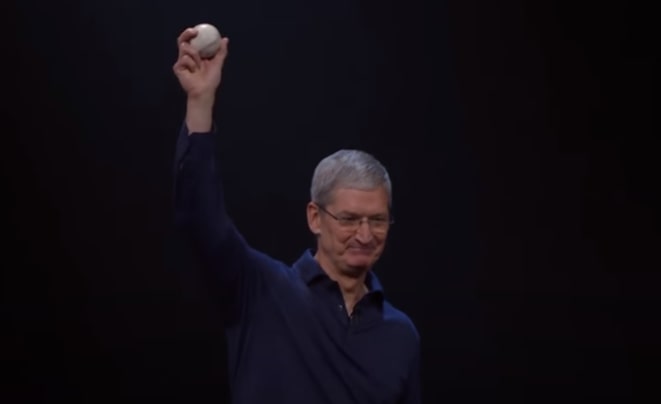
Before we get right to the show, I’d like to bring up something that I saw on the news just a few days ago. This Brandon Moss of the Cleveland Indians and he hit his 100th career home run last Tuesday. Obviously it’s a huge milestone if you are baseball player, not a lot of people do this. And you can imagine how much that ball would mean to him to have it. But it turns out the ball was hit into the Indians bullpen, and his teammates decided to play a bit of a prank on him. They decided to hold it for ransom. And this is the list of things they asked for. Apple watches, iPads, Mac Book Airs, iPhones, it’s unbelievable. It’s a shopping list at the Apple Store.
Now Brandon would have had to raid an Apple store to get that ball back. That didn’t seem quite right to us. And so what we’re going to do is we’re going to pay the ransom. And I have the ball right here. We’re giving the ball to Brandon and we’re going to give everything his teammates asked for, so everybody is happy. Congratulations Brandon on 100th home runs and good luck on the next 100.
Now we’ve got a jam-packed morning for you. We’re going to get started with OS X. We’re bringing a whole bunch of new great capabilities to the Macintosh. And next, we’ve got a great update for iOS, the world’s most advanced mobile operating system. And today we’re bringing native apps to Watch with a new version of the watchOS which gives the developers even more time to create even greater apps for the Watch that will change the world.
Now all three of these ecosystems together provide incredible opportunities for developers and unbelievable possibilities for users. So we’re very excited about this. There is a lot here and so I’m going to dispense with my normal updates other than to tell you everything is going great.
And I’d like to bring out my friend and colleague Craig Federighi.
Craig Federighi – SVP, Software Engineering, Apple Inc.
Thank you, Tim. Good morning. Wow! It’s fantastic to be with you here at WWDC. The team has been doing some amazing work this year and I’m thrilled to be able to share it with you today.
We’re going to start with OS X. Now our current release Yosemite is a big bold beautiful release with a gorgeous new UI and breakthrough features like Continuity that let you work across your devices like never before.
Now the adoption rate for Yosemite is just incredible. In fact, over 55% of active Mac users are running our latest update and this is just unprecedented in the history of our industry. In fact, Yosemite has the fastest adoption rate for any PC operating system ever. So thank you.
So for our next big release of OS X, we knew we wanted to build on those strengths of Yosemite with some really great refinements and advances. The only really real question of course was what to call it. So we had to once again turn to our Crack Apple marketing team.
Now in typical California fashion, they started with the project kick-off meeting and then headed immediately into a team building off-site. Now of course they are in their traditional Apple marketing free-bottom Friday’s attire. They say it’s all part of their process. I am not sure I get it. Ultimately this didn’t yield any names, so they called in a consultant. He told them the answer was to be found within. Not within themselves but within Yosemite. And so the new name for OS X is OS X El Capitan.
OS X El Capitan
For El Capitan we focused in two major areas: experience and performance. For experience, we’ve made Spotlight more expressive, more powerful and more knowledgeable than ever. We made big enhancements to the apps you use most and we made some real great advancements in the area of how you manage Windows on a system. But rather than just talk about it, I’d like to show it to you. So let’s start with a demo right now.
Now your first task of course in a demonstration or whenever you wake a Mac is finding the cursor, and El Capitan makes this easier than ever.
Now we brought other great gestures to the system. I am just going to go here in Mail. I have a message here from Eddy. Looks like — that’s a keeper. So I can actually mark it unread to keep it just by swiping two fingers across the trackpad, just like that. And this one I kind of like to delete. So I’m just going to swipe it away just like that. So some real nice little gestures.
Let’s move on now to Safari. Now on Safari, I have some sites that I like to keep around because I refer to them on and off throughout the day. And now in Safari I can pin those sites, just like this. So there is – I am going to pin my Twitter site here and of course, I have been following the Warriors. Go Warriors, we’re going to get it done. Just like that.
Now pin sites have a lot of special properties. For one if I close this window and reopen it, you see that my pin sites are all right there and they load instantly. Now pin sites also behave differently when I follow links. So I’m just going to click on one here and you know, it opens in a new tab but my pin site remains. Now I am going to open up a couple of more links, so open up this one and let’s say this one, and take a quick look, this one looks like some kind of presentation video and this one is about the Giants. If you have this happen to you, you’re like where is this audio coming. Well now with just a tap you can mute it or find out where it came from and shut it down. Just like that.
So I’m interested in seeing this Giants game. Now Spotlight can actually help me out there. So I am just going to search for the SF Giants and we see right now I guess current game scores, upcoming games. Looks like the game I want to go to is on Friday. So I can just search for weather on Friday. So we get the weather and even resize the Spotlight panel and move it around. I mean there’s innovation. So — but I can also express myself in my own words and Spotlight searches now. so I can do things like slides from Brian. You see I find those there but how about slides from Brian about El Capitan. You see I find exactly what I’m looking for in my own words. Now this works great in other apps as well. Let’s try it out in Mail.
So I’ve been really busy of course the last couple of days. And so I’ve been getting a little behind in my Mail. And I want to see the messages that I receive from Phil but I haven’t responded to yet. So I am going to say mail I ignored from Phil. There are a few but I will be getting back to him right after the show.
So next, of course, it’s great in the Finder as well. So I wanted to look at documents that I was working on last year at this time, I might say something like documents I worked on last June. And I find exactly what I’m looking for. So this is really a great way to search.
Then next, I want to turn to window management. So I am just going to run a script here that’s going to open up a whole bunch of windows to simulate kind of what my desktop looks like after a day working on OS X because it’s a powerful system. We tend to have a lot of things open. Now OS X provides some great ways to navigate your windows. One of those is mission control.
Well now in El Capitan, we’ve made mission control smoother, simpler and faster than ever. I’m just going to take three fingers and swipe up on the trackpad, you see I get in this gorgeous overview of mission control. I’ll just bring forward Safari. Let’s do that again and bring up Mail. Just like that. Works really great. But of course, OS X provides great tools also to organize your windows and one of those is full screen. Just going to take this window here full screen and I am going to reply, looks like there’s a message here from Eddy. He says that he’s sorry about bailing on the team dinner last night. He was apparently prepping for the keynote. So that’s understandable but it looks like actually I just got a new mail from Jeff here and now I can just click away and it hides and then I’ll hold on – busted Eddy. So I think I’ll just drag this actually right into my compose window, it hops right up automatically and I can do just like that. It’s really great. And I can even open up tabs in compose as well. It’s really handy. So this is a great way now to work in full screen in Mail.
Now we’ve done something totally new to El Capitan. It’s the ability to work really easily on two windows side by side. So I am just going to click and hold here on the green button. And you see it’s prompting me to pick a side. I’ll just drop it in and you know I can exposé of only the window, let me pick the new news app, just like that.
Of course, I can resize this window to style just the way I want, how about that blur? Again innovation. So a great way to work. Here I can drag links for instance from Safari. Right in here you notice in the new notes app, I get a beautiful graphical link that gives me a nice thumbnail to help me identify what I dragged in there. I am going to drag in some yurts. I think yurts first time mentioned on the WWDC keynote stage, so there you go. Got some yurts here. It’s a great way to work split screen.
We’ve also provided a really easy way to move windows into their own desktops. So let me just take this window here. I am just going to drag it get up past the top of the screen and drop it in just like that, so easy. But I can also do this to take a window full screen. So let’s take Photos, just drop it in right here. I took it full screen and I’ll check this out. I’m going to take Messages, drop it on Photos and create a split view, just like that. Totally awesome. And that is a quick look at some improvements to the experience in El Capitan.
So we saw in El Capitan a powerful form of search in Spotlight that lets you compose your searches in your own words. It knows more than ever, can look up on weather, stocks, game scores, we saw gestures, for instance, swiping to delete in mail, and of course pin sites in Safari and the ability to easily new tabs, a great new Notes app that supports text styling, checklist and graphical links and better window management than ever with a beautiful new mission control interface, easy access to your spaces bar and of course the ability to do split view and that’s just exactly what you’re looking for every pixel of your display devoted to your content. Of course, there’s much more to experience in El Capitan but now I want to turn to performance.
So we’ve optimized performance throughout the system. In fact, we’re seeing about a 1.4 times acceleration in app launching, a 2x improvement in the snappiness of switching apps, the time to get first mail messages twice as fast and opening a PDF and preview four times as fast. But we’ve also made deep architectural improvements and that brings us to Metal.
Last year, we introduced Metal at WWDC as a way to accelerate graphics and high-performance games. It takes the overhead out of OpenGL providing a high-performance API that gives the game direct access to the power of the underlying graphics hardware. Well this year, we’re bringing Metal to the Mac and we’re doing more than that, because we’re taking the graphics stacks on which apps on OS X are built, Core Animation and Core Graphics and moving them from OpenGL to run natively on top of Metal, making everything you do faster. We’re seeing 50% improvements in rendering performance and a 40% reduction in amount of CPU necessary to do graphics. That means improved performance for your applications and better battery life. But the benefits of Metal don’t stop there.
Metal is also great for high-performance apps. In fact, Metal combines the compute power of OpenCL and the graphics power of OpenGL in a higher performance API that does both. And what we’ve seen from working with early pro developers is really phenomenal. Adobe came in and in short order was able to deliver an 8 times improvement in their rendering effects inside of after effects and they’ve been able to take the drawing engine in Illustrator, move it on top of Metal and take kinds of UI that previously was non-interactive like Zoom of extremely detailed drawings and make it completely flawless and interactive thanks to Metal. Adobe so pleased with this, they’ve said they’re committed to adopting Metal on their OS X apps seeing performance increases up to 8x, excited what it can do for their creative cloud users.
Of course, Metal is also fantastic for games with 10x improvement, that’s 10 times improvement in drawing performance. And so we brought in Epic to see what they could do in short order and the results are really phenomenal. I’d like to welcome to the stage Josh Adams and Billy Bramer for a quick demo.
Billy Bramer
Thank you, Craig. Thank you very much for having us here today. So last year Metal revolutionized graphics on iOS. And now Apple has amazed us again by bringing Metal to the Mac. Of course this is great news for games but also for the tools that we use to make those games.
Here you’re seeing Epic’s upcoming multiplayer titled Fortnight, running entirely on Metal. We’re modifying it directly within the Unreal Engine, a development tool that powers many of today’s best games. It’s quite a bit going on in the scene though. So let’s break it down.
First, there are 64 different layers of rendering effects and that’s a lot. All combining together though to produce what you see on the scene today. We go into a simple wireframe mode. You can see the thousand of building blocks that make up this world. We can start to add in layers, flat shading, detailed lighting, runtime shadows and finally we combine them all together to bring Fortnight’s fun and light-hearted aesthetic to life. The interesting thing here though is that all of the effects you are seeing are being done completely in real time. Notice how the shadows and objects interact nicely as Josh moves the car around.
Finally, we can change the time of day on the fly dramatically altering the mood of the entire scene. All of this is thanks to the efficiency of Metal. In fact, we’re seeing a 70% reduction in CPU use compared to OpenGL, enabling developers like us to create richer 3D world. Speaking of those worlds, let’s hop into the game. Fortnight.
Now if you’ve ever built a pillow fort, battled imaginary monsters with your friends, you already know how to play Fortnight. This is the end to the world scenario. You’ve been training for it since you were a kid. Beautifully stylized universe, you can destroy anything you want, gather resources, build a fort. So let’s go ahead and erect this car. Gather it metal and continue our on-destruction by chopping down the street, get the wood for later. We mentioned our purple jack storms, like this one for instance. We should go. And luckily while we’re out exploring we found a multitude of weapons and this broom. We can just get across the field. Our friend’s been busy building it across the whole of it. We mentioned the storms are made of monsters. Nice. There’s our friend laying down covering fire. I got a bad feeling about this, you’re going to need a bigger fort. Just place a trap at inside. Looks like an enemy has broken into our fort.
All right. Let’s use that hood we gathered earlier and fix this wall, build some stairs. Whether you’re a gamer or a game developer, Metal opens new possibilities for rich engaging worlds. Can download the Unreal Engine for Mac right now and the Fortnight beta for Mac starts this fall.
Thank you very much.
Craig Federighi – SVP, Software Engineering, Apple Inc.
Thank you guys. That was great. We’ve been totally impressed with what Epic has been able to accomplish in such a short time. And this is in part because the work they did to adopt Metal in their rendering engines for iOS immediately pays dividends on OS X and we’re seeing this with many other developers as well who are bringing their gaming engines immediately to the Mac and pro app makers are seeing the benefits of Metal as well. People like The Foundry and Autodesk think we’re going to see Pro users, gamers and all of us benefiting from the performance advantages of Metal. So that is El Capitan, improvements to experience and performance.
Now El Capitan is available to all of you developers today. We will be doing a public beta once again in July and we’ll be rolling out to everyone with a free upgrade this fall. And that’s our update on OS X.
iOS 9 – Intelligence and Siri
Next, you guessed it, iOS. Now our current big release of iOS is iOS 8 and iOS 8 was a huge release with tons of new features for users and a phenomenal set of technologies that you developers have been able to use to deliver all new experiences to the platform. The upgrade rate for iOS has been fantastic. We have 83% of active iPhone users currently running the latest OS and this is really important because it means not only they’re getting the most recent features but they’re also up to date on all the security fixes and you’re able to know as a developer that you can target all the users with the latest and greatest APIs. And this is a benefit that actually remains really unique to iOS. So we’re now looking forward to iOS 9 and as we can see of what we wanted to accomplish, first and foremost, we wanted to elevate the foundations of the platform. Things like extending your battery life, improving performance and enhancing security to protect customer data.
But there was more we wanted to do. Adding intelligence throughout the user experience in a way that enhances how you use your device but without compromising your privacy. Things like improving the apps that you use most and taking the experience of the iPad to the next level. I want to start today with intelligence and Siri.
Now Siri has quietly become incredibly popular, serves over a billion requests per week and this is in part because Siri has gotten so great to understanding what we’re saying. In just the last year seen a 40% reduction in word error rate, down to 5%. That’s an industry-leading number and Siri is 40% faster than ever in responding to what we say.
Now for iOS 9, Siri has a beautiful new UI and is capable of doing so much more. Things like show me photos from Utah last August and instantly show you the right photos from your photo library. And Siri is really great at taking reminders. Now you can ask Siri things like remind me to grab my coffee off the roof of my car when I get in because Siri knows now when you’ve gotten in the car. And of course, we often want to take reminders about things that we’re looking at on our device and content inside of an app, maybe a Safari. And so now you can say things like remind me about this when I get home and that reminder refers right back the link to specifically what you were looking at when you took that reminder.
So Siri is a great assistant but the best assistants are proactive. So in iOS 9, we’re bringing proactivity throughout the system. So say, you like to run in the morning, and when you do, you like to listen to music. Well now your phone can learn that about you and when you plug in your headphones can offer up now playing automatically right on the lockscreen. And this is all context-sensitive to the time, the place and even the devices you are connected to. So you do the same thing in the car later on and it might offer up the audio book that you’ve been listening to.
Now it’s a great assistant. Your iPhone can now take invitations that you’re receiving your e-mail and without you even touching them automatically put them on your calendar and even give you a time to leave reminder taking into account current traffic conditions and of course with just a swipe give you access to driving directions.
Now have you ever had this happened to you? You get a call and the number looks kind of familiar but you’re really not sure who it is. Well, it’s a great assistant. Your phone can now look in your email and find out who that person might be and suggest it to you right on the incoming call screen. It’s super handy.
Now this kind of proactivity is also great when it comes to search. So now when you swipe to the left to the home screen to get to search, you see that Siri offers great suggestions. Things like the people that you might want to contact now based on your upcoming meetings and your communication patterns, the apps that you might want to launch based for instance on what you just downloaded from the App Store and haven’t yet tried out or apps that you tend to use this time of day. And also easy one tap links to locations that are relevant nearby and even breaking news. And when it comes to search, we also know more than ever before. So for instance, you can search for sports scores and we now support video search of popular video sites like ViVo, Vimeo, YouTube and the iTunes Store and have these great descriptive cards with a play button, so you can play directly from your search result, but most importantly, we now have an API for search.
So now when a user performs a search, we can find content behind the apps they have installed on the device and pull those up in results and when they tap, they are deep linked directly into the application. And of course we even provide a convenient backlink so they can get right back to their search results. So we think these kinds of intelligence features really make a huge difference in your experience in iOS and to show you how, I’d like to give you a quick demo now.
So I want to take you through a day in life with iOS 9, and we’re going to start with a typical day for me today. And we’re going to start in my bedroom when I woke up in the morning. And you’ll notice because my phone knows that in the morning, I like to meditate that it’s offered me a meditation app right here in the bottom left to the screen. So I can just swipe up from the bottom left and I’m taking right into meditate. Ah, this is so serene.
Well, it looks like I got an e-mail — a message here from Phil. So Phil says that he is putting together the invite for tonight’s big karaoke potluck and can I still pick up this super awesome karaoke machine? Well you know, Siri actually when I take reminders is able to link me right back to what I’m looking for. So if I want to remember to pick this up, I can just say this to Siri. “Remind me about this later today”. And so Siri will put together a reminder and you see the link right back to what I’m looking for.
Well I think after all meditation isn’t probably for me, so maybe I’ll move on to exercise. So head into the home gym here and because my phone knows that when I’m in the home gym, I hook up headphones and I like to listen to music, watch what happens when I plug in the cord, my headphones. Jumps right in and it offers me some energetic music. So let’s all bust some move.
Bust. I don’t know what kind of exercise we are all doing here but looks like actually I’ve got that invitation that Phil was going to send me. So now normally I’d have to actually go into Mail, look at the time, put this on my Calendar but in fact, my phone is automatically done that for me. Let me just swipe down here in the Notification Center, will look at my calendar for the day. And you know it’s automatically — it’s already been added right there.
Now if we look at the rest of my day up ahead, I have my vocal warm ups, of course, for the karaoke performance and then the WWDC. So let’s — looks like I have a little bit of time to prepare my dish for the big potluck. So I’m going to head into the kitchen now and let’s just swipe it now. When I’m looking for recipes, for instance, I have to go on a search. Let’s just swipe over in the search and we see that Siri actually has already before I type the character made suggestions for me, for people I can contact for instance like Trent Reznor, my vocal coach. So I can just tap and here I can call Trent up and he can now tap into my inner pain and rage that allows me to fuel my vocal performances. I actually haven’t been able to find the pain and rage. Truth be told but also we have all these great apps I can run locations nearby, for instance, because it’s morning you see coffee and tea and breakfast places are suggested as well as news. But in this case, I actually want to do a search.
So I have some potatoes, I think, I can make use of in this recipe. So let’s just search for potato and here you notice I am getting search results right from Yummly. So let me tap into Yummly and you see I’m deep linked directly and so I get a great view provided by that application. Now potato chips aren’t exactly what I’m looking for. So I am just going to hit the backlink here. And I can just browse directly in to another result, Canadian poutine — now that looks like exactly what the doctor ordered. Yes.
So let’s take a look at the ingredients, looks like 6 tablespoons of unsalted butter, I’m down with that. So I’m going to make at least a double batch. So I can just use search to actually search for to a conversion of tablespoons to get how much that is. So that actually is three quarters of a cup. So I am going to around up to an even court and make myself some fine poutine. So search is really handy but Siri is also great as search.
So I want to jump forward to later today, when I think I’ll be reminiscing about WWDC’s past, and I can ask Siri to help me with that. Show my photos from last June in San Francisco. Oh yes, this is great. All these photos from WWDC and you notice now photos in iOS — this great scrubber bar down at the bottom, I can easily slide through photos super quickly just like this, that’s the old boy. Now we are into the karaoke night. Oh, this is some fine stuff. Phil really does an awesome Viking crooner. This is good stuff. But of course the king of karaoke Eddy Cue, in fact, when I want to get really pumped up and inspired for karaoke night, I like to turn to my Eddy karaoke album. So let’s do that now.
Show my karaoke photos of Eddy. Oh, that is the master at work – I love this hat. This is it totally — great stuff. I could really look at these just all day but you know actually my assistant has given me a reminder based on traffic conditions that it’s time to leave. So I’m going to wrap up this demo of intelligence in iOS9.
So you’ve seen how we’ve been able to bring intelligence throughout the experience in iOS 9 but we do it in a way it does not compromise your privacy. We don’t mine your email, your photos, your contacts in the cloud to learn things about you. We honestly just don’t want to know. All of this is done on device and it stays on device under your control. And if we do have to form a look up on your behalf, for instance, for current traffic conditions, it’s anonymous. It’s not associated with your Apple ID, it’s not linked to other Apple services and it’s not shared with third parties. Why would you do that? You are in control. That is intelligence in iOS 9.
Apple Pay
Next, let’s turn to Apple Pay. And to take you through it, I like to bring to the stage our Vice President of our Apple Pay business, Jennifer Bailey. Jennifer?
Jennifer Bailey – VP, Apple Pay
Thanks Craig. It’s great to be here. We have been hard at work on our goal of replacing the wallet and we’ve got some exciting updates for you today. I hope you’ve all tried Apple Pay with our super easy, secure and private way to pay.
Last year we started with credit and debit cards and we now have over 2500 banks supporting Apple Pay and this fall Discover will bring Apple Pay to the more than 50 million card members. Popular merchants are also expanding their acceptance for Apple Pay, including great retailers who will be supporting Apple Pay this year, including Trader Joe’s, Baskin Robbins and JC Penneys. These incredible brands join a great list of the biggest and best merchants supporting Apple Pay since our launch in October. And for you basketball fans, if you’re lucky enough to have final’s tickets, you’ll be able to pay for all your team logo wear at both arenas using Apple Pay.
Small businesses are also important for us. So we’re working with innovative companies like Square to enable millions of small businesses to accept Apple Pay. This fall Square will launch a gorgeous new reader. Pre-orders are starting today on square.com and these will be available in our Apple retail stores starting this fall. With fantastic support of merchants both large and small, we will surpass 1 million locations accepting Apple Pay next month.
And thanks to our amazing developers, we have great momentum within apps as well. Apple Pay is so easy to use in apps. Our developers are telling us they are seeing more than 2 times increase in check out rates, and we are adding new apps with Apple Pay to the App Store everyday. Here are some of the latest representing a great range of categories from Delta in travel to Etsy, the leading crafts marketplace. These apps join an incredible group that are redefining new and simpler way to pay.
We’re also excited to be working with Pinterest. Later this month, Pinterest will launch buyable pins where you will be able to buy items from thousands of stores, including Neiman Marcus and Macy’s right from within the Pinterest app, using Apple Pay and only on iOS.
With the great momentum of Apple Pay in the US, we are now excited to announce that we’re bringing Apple Pay to the UK. And it’s coming next month. We will launch with eight of the most popular banks with more of coming this fall. With this great line of banks, we will support more than 70% of the credit and debit cards in the UK.
Great merchants are also lining up to support Apple Pay like Boots, Costa Coffee, and iconic British brands like Marks and Spencer and Waitrose. We will have over 250,000 locations supporting Apple Pay in the UK. That’s more than we started with in the US at our initial launch. We’re also thrilled that our customers will be able to commute and pay for their fares on the London transportation system with Apple Pay. So that’s Apple Pay coming to the UK.
Now let’s talk about some of the new features that we are adding in iOS 9.
First, you’ll be able to add your store credit and debit cards. Store cards offer unique membership benefits and leading retailers like Kohl’s, JC Penny and BJ’s will be the first to offer their cards on Apple Pay. We will also add loyalty and rewards cards also with a great line up of merchants. Kohl’s will bring Yes2You program, Walgreens, their Balance rewards cards and for you coffee and donut lovers, Dunkin Donuts will bring Apple Pay to DD Perks to their stores beginning this fall. And Apple Pay automatically presents the right cards so you’ll never miss a reward.
With the expansion of Apple Pay and the new types of cards, we’ve decided it’s time to rename Passbook to Wallet. One place for all your credit and debit cards, loyalty cards, boarding passes and more. We told you last year that our ultimate goal was to replace the wallet and we are well on our way to doing just that. We couldn’t be happier with that progress toward our vision and with the momentum of Apple Pay. Thank you.
Craig Federighi – SVP, Software Engineering, Apple Inc.
Thanks, Jennifer. So that’s Apple Pay. Let’s turn now to our enhancements to the apps you use most. And we’re going to start with Notes. Notes are used regularly by about half of our users on iPhone and for iOS 9, we have some really great enhancements. It starts with how you work with simple texts. So now Notes provides a really handy tool bar with formatting options. So it’s easy for instance to create titles, heading styles, numbered list. But of course we all like to create checklist in our Notes. And Notes makes that really easy and of course you can just check off your items with just a tap.
Now because a picture is worth a thousand words, we make it easy to get at your camera and your camera roll and put photos directly in your Notes. We’re also providing a great new way to capture your ideas by just drawing with your finger. We provide some great drawing tools. You can make sketches with these tools and drop in right inside your Notes.
Now I don’t know if you’re like me but a lot of times the things I want to put on my Notes are things that I’m looking at, that I find in other apps, for instance, a web page in Safari. So now from the share sheet, you can just with a tap add a link right back into your Notes. We make it really easy to find your Notes. So we organize it by time of course and now we have these great thumbnails that let you see your embedded images at a glance but we also provide this cool new attachments view that shows you all of your photos, your maps links, your website links, and when you tap you can get right back to the note where they came from.
Now Notes is great on iPhone, on iPad and of course on the Mac as well and all of your content is kept up-to-date across all of your devices via iCloud. That’s a quick update to Notes.
Next, let’s turn to Maps. We continue to invest heavily in Maps and improvements are really awesome. We’re seeing 5 billion user requests per week. Usage on iOS is 3.5 times higher than the next leading mapping app. Now Maps of course historically have been focused on drivers to emphasize things like freeways and roads. But we know for a lot of our iOS users, they are mostly focused on public transit. And so now we’ve created a great map just for them. Yes, it’s transit.
With transit, we provide a map that emphasizes all of the different transit lines, buses and trains, subway stations and so forth. And when you tap on a station, you can see all the lines that run through it with their departure times. And we do multimodal routing using that, whether you’re taking a train, a subway, a bus or ferry, and we provide step-by-step directions, including time for walking directions. We’ve taken special care to get the details right, the ones that matter with transit. For instance, you take a subway station like this one in Columbus Circle in New York, it’s not just a point on a map. You look closer, it’s actually an enormous underground structure spanning many city blocks. And so we carefully surveyed all of the entrances and exits so that we could give you walking directions based on the time to travel from where you actually are. Now this not only saves you a ton of walking but it also probably is the difference between catching your train on time and being stuck. Really great.
Now we’ve taught Siri all about transit, so it’s effortless to ask Siri for directions. And we’re going to be rolling Maps out Transit starting with these cities across the world and with these and 300 more in China.
Now when it comes to searching in Maps we’re now letting you find locations by type nearby with just a tap and when you find the location you’re interested in, the car will tell you right away right there in the bottom whether they support Apple pay — support those Apple Pay merchants. Maps is great on iPhone and iPad and of course the Mac as well. And that is Maps.
The apps that we’ve chosen to build in to iOS are there because they represent fundamental experiences to living on a mobile device and there has been one that we’ve been wanting to do for years, something that so many of us find ourselves wanting to do every day on our device. And so today I am pleased to announce that we’re introducing a new application and it’s called News.
News is beautiful content from the world’s greatest sources personalized for you. Now here is an article in News. It’s absolutely stunning. Now publishers can easily create beautiful content using gorgeous imagery, custom layout and rich typography. But News is also interactive. And so to give you a look at News in action, I’d like to invite to the stage our vice president of application product management, Susan Prescott. Susan?
Susan Prescott – VP, Application Product Management
Thanks, Craig. Thank you. I am really excited to be the first person to show you our News app. It’s right here on the home screen. The first thing I just want to do is get a sense of what I like. So it’s going to give me a short list of really great choices to choose from. And you will see, as I tap, additional recommendations come in on the bottom to give you even more choices. So I read Atlantic, Wired, New York Times and ESPN. I’m still with you Warriors and Daring Fireball, topics too like science, baking and travel. I could keep going but I think that’s a great start. So that’s half done.
News creates a personalized feed called for you. It’s based on the choices I just made and it’s all my news in one place. You can see it looks great. It’s easy to scan and it updates every time I check news. The articles can come from anywhere but the best ones are built in our new Apple News format, like that Wired article featuring Rashida Jones, awesome in Parks and Rec and the Office. Look at the rich typography, beautiful images and my favorite part are the really fun animation. It’s fast and fluid. We think this offers the best mobile reading experience ever.
To get to the next article, I just swipe. It’s not just great for magazines, it’s great for newspapers too. This is a New York Times article and that looks like a New York Times article. Swipe down, there’s a photo gallery right in line, fast fluid to swipe through. Go to the next article, this one is from Quartz but I’m seeing it because I said I’m interested in science. It’s a pretty cool article about a font based on Albert Einstein’s handwriting. The animation makes it come to life and frankly who knew we had such a neat handwriting, kind of interesting.
Swipe again and I get an article from Bon Appetit, great summer recipes and a crazy jiggly little thing which is kind of fun. So I’m a little busy right now. So I’m going to go ahead and bookmark it to read later.
Next ESPN, I love this Swift – now I read ESPN for the articles but there’s also some beautiful photos and videos. Some photos and videos built-in, not so much last night but let’s see if that can make this one. All right. He’s going to be there for us next game.
In addition, data and stuff – it was fun about sports, so of course rich infographics can be part of it. I am going to swipe back to for you. Now News is smart, so the more I read the better it gets, it’s showing me stories I’m interested in but what if I want to discover something new? Well I can tap here in the bottom on explore and explore based on what I’ve read will show me new publisher channels I might be interested in and suggested topics. Well I love technology. I’m going to go ahead and follow that but News keeps track of more than a million topics. So I could be much more specific about my interest. To do that I can tap on search and type – going to type Swift. I get a number of hits, everything from Taylor Swift to what I was looking for, Apple’s new programming language. So it’s a beautiful feed and what’s really cool about this is there are powerful machine learning algorithms that analyze the contents of the articles to figure out which stories belong in which article. This looks like just what I was hoping for. I’m going to go ahead and add Swift to my favorites.
So let’s take a look at favorites. I will tap down here. Favorites is where I can see everything I’m following, including Swift which I just added. It’s a great place to go if I want to dig into a particular topic or if I want to read a newspaper or a magazine. Let’s say today I want to read Wired. You can tell I’m in the Wired channel. You see the Wired logo at the top and the Wired channel starting with top stories. I can swipe through and see a collection of all the print and web stories built in Apple News format and it looks terrific.
I’m going to look at one more story. This is about the first civilian artist in space. Cool concept and really cool. Want to show you this – we’ve taken photo gallery to the next level with something we call Photo Mosaics. Look how beautiful it looks on the page. Stunning. And as you would expect, I just tap to zoom in on the photos. It looks great. We think there has never been a more beautiful magazine reading experience, a mobile reading experience in general and this is just one of many channels with beautiful stories built in Apple News format. That is a really quick look at News. We can’t wait to get it in your hands. Thank you very much.
Craig Federighi – SVP, Software Engineering, Apple Inc.
So that’s News – stunning content personalized for you, fantastic on iPad and on iPhone as well. And of course, unlike just about any other news aggregation service we’re aware of on the planet, News is designed from the ground up with your privacy in mind.
Now we’ve worked with the leading publishers, like the New York Times will be delivering 30-free articles daily to News users and ESPN will be bringing the depth and range of their phenomenal sports reporting, and Conde Nast will be bringing content from 17 of their magazines like Vanity Fair, Vogue, GQ, Wired and Bon Apetit and they’ll be joined by many many others read by millions of users daily.
But now News isn’t just for the media titans. Great content comes from all kinds of sources and we want them all in News. So whether it’s a local newspaper, a blog or special interest publications, they’ll all be here. We will be rolling out News starting in the United States, the UK and Australia. We think you’re really going to like it.
Next, let’s turn to iPad. Now iPad is a transformational device. For our users in education, business and at home, for many of them their iPad is their primary computer. And iPads are just tremendously powerful and so in iOS 9, we’re elevating the iPad experience to a whole new level.
Now it starts with something really simple which is how you work with texts. That brings us to the QuickType keyboard. Now in iOS 8, we introduced the suggestion bar that makes it quicker than ever to type and enter what you’re trying to get in. But now in iOS 9, we’ve added shortcuts to that bar. So with just a tap you can cut, copy, paste, format your texts, access your attachments, it’s really handy. But you know what makes a multi touch keyboard so special is that it can be anything you want, it can transform. And so now when you want to move the cursor or make a selection, you can now just put two fingers down on the keyboard and it becomes a trackpad instantly. You can move the cursor. You can make selections. Of course, you can use the shortcut bar to cut, drag to a new place and paste, editing more quickly than ever before and without your fingers ever leaving the home row. It’s really great.
And if you do occasionally want to hook a physical keyboard to your iPad as well, we made that better than ever. We provide a way to discover all of the shortcuts that can accelerate your operations in the applications using the keyboard and we provided shortcuts for app switching. This might look familiar to some of you as well as to searching in Spotlight. So that’s QuickType. But now I want to turn to the big one and that’s Multi-tasking.
So iPad has always supported forms of Multi tasking like this great graphical task switcher and these nice four finger gestures that let you move between applications. But for iOS 9 we’re taking it to a whole new place and I’d like to show that to you now.
So let’s start here on my iPad. And what I am going to do first is double tap in the Home button and you’ll see our new task switcher. It’s really gorgeous, big, full screen, previews of all the apps, just move right into Safari like this. But of course often when I am in an app like Safari, then I just want to quickly check my messages. So now with just a single finger swipe from the side, I can slide it right in with what we call Slide Over and of course it’s fully interactive. Right here I can take a look, maybe type response, put it right back, and back in Safari. You do that again, now from the top, I can pull down and bring in other applications. So let’s bring in Calendar. Of course fully interactive, so I can tap into another day.
Let’s bring in another app. I’m going to bring in the new Notes app, just like that. Now sometimes of course I want to stay working in Notes and Safari both at the same time. So I can just tap here on the divider and now I’m in split view. They’re both completely active. In fact, for the first time ever multi-app, multi-touch, I can move them both at the same time.
Now Notes is actually pinned to the site now. So I want to show you what happens when I switch apps. I’m just going to move over here to photos and notice now I have photos with Notes on the side. This is really great if I’m taking notes while working across a bunch of different experiences, and of course, those four finger gestures continue to work great. So I can just swipe my way right back into Safari like that. I can follow links of course from my Notes. Let me just tap on this link and you see Safari loads it right here on the side. Now I can adjust this split, and let me just move that over to a nice 50:50 view with Notes and Safari. And I can tap on links to other apps. So let’s a follow a link into Maps. See Maps just — I really want location accuracy, thank you, very helpful. So slides right in and shows me the location. I can follow another link. And you see Maps adjust. I’m able to just stay focused right here in these two apps side by side. And let’s say I want to now work on Notes full screen, I can just pull right across like that. I’m in full screen Notes.
Now this gives me a great opportunity to show you what’s new with the QuickType keyboard. So I’ve got a to do list I’m building here and I’m just going to buy – add an item here to buy a new ice chest. There we go. But on second thought, I think I want to — I should probably borrow one. So I am just going to take two fingers down on the keyboard and just swipe over here. I can reposition the cursor like that, tap and make a selection, extend the selection and type borrow. It’s really easy. You can make bigger moves too. I go to the top here, maybe select the whole sentence, drag down, maybe your checklist like this, check them on. Just like that. Super cool.
Next, I want to show you multitasking in the context of something I think we all do quite a bit on our iPads, which is not that — which is watching ESPN. So let’s bring up a video bring. I am going to play right here. Now often when I’m watching a video, I may decide I want to look something up or check something or maybe even get a notification. And I don’t want to watch — watch what happens when I tap. Watch the video. Now I have picture in picture. So I can still listen, I can watch my video. I can of course resize the PIP if I want like this. I can move it around the screen. So it’s out of the way of what I’m working on. I can even move it off the sides. Sometimes I just want to listen for a while, while I work, and of course it stays with me wherever I go. I can pull it back and when I’m done, just tap to put it away. And that is multi-tasking in iOS 9.
So iOS 9 delivers this great app switcher and of course that’s available on iPhone as well. On iPad, we have Slide Over, so you can bring apps in from the side. You can tap and enter split-view for simultaneous live two apps up and of course picture in picture (PIP). Now we provide developer APIs to let your apps work this way and the good news is that you’ve already done most that work because if you adopted auto layout and size classes to work great on the iPhone 6 and 6 Plus, well that carries over just like this on the iPad. Twitter came in, I was able to do it just in minutes, it was really incredible.
Now Slide Over is available for the iPad Air, Air 2, mini 2 and mini 3 as is picture in picture and our most powerful Split-view is available on our most powerful iPad — the iPad Air 2. That’s Multitasking.
So we’ve seen some great end user features. But of course we’ve also focused on the foundations. In performance as you saw earlier in El Capitan with OS X, we’ve taken the core frameworks that we use for drawing on the system, Core Animation and Core Graphics and we put them on top of Metal. We are seeing great acceleration, 1.6 times improvements in animations and scrolling and a 50% reduction in CPU usage for drawing. It’s really great.
Now with battery life, we focused on real-world use cases and optimized them, and we’re seeing an addition of one hour of typical use on a full charge on iPhone. Now we know that for a lot if you’re running low on power, you start searching all over for switches and turning off features in the hope of extending your battery life a little bit further. Well now in iOS 9 we give you a single switch in what we call low-power mode. It pulls levers that you didn’t even know existed and is able to extend battery life for additional three hours of typical use on top of that additional hour. It’s really great.
Now with security, we want to protect our users’ data on device and in the cloud. And so we’re bringing two-factor authentication and making it easy for everyone to protect their data in iCloud. And with software update we want everyone to get to iOS 9. And so we’ve done major enhancements to the architecture for our over-the-air updates and we’ve been able to reduce the amount of free space you need to get to iOS 9 from 4.6 gigs that it took to get to iOS 8 down to just 1.3. So we think everyone is going to be getting to iOS9.
So iOS 9 intelligence throughout the system, Apple Pay, enhancements to really popular apps like Notes and Maps, an all-new News app and incredible features now for iPad with Multitasking and QuickType and of course, enhancements to the Foundations. Now iOS 9 is a great release for our users but once again it’s a fantastic release for all of you developers, bringing a ton of new feature. You saw search extensibility. We’re adding UI testing to X code. We have a new technology – yes, we have a new technology called App Thinning which optimizes your downloads to exactly the sub-set of resources needed for that user’s device, so you’re able to get – take a less space on device. It’s really great.
Now when it comes to gaming, we’ve enhanced SpriteKit, Scenekit, and Metal and introduced 3 new frameworks: GameplayKit to bring artificial intelligence with path obstacle avoidance and path-finding; Model I/O to provide beautiful lighting on your 3D models, and Replay kit, it lets you enhance your applications to let users record their gameplay as video and share it. It’s really great.
Now HealthKit has been on fire and so we’ve continued — well we added water actually to HealthKit – we’re not going to put out the fire. HealthKit, we’re adding lots of additional health metrics to be tracked. For instance, hydration, UV exposure and reproductive health.
Now HomeKit has been taking off with manufacturers introducing HomeKit peripherals to the market now in areas like thermometers, locks and lights. And now in iOS 9 we are adding support for window shades, sensors of all kinds, for instance, carbon monoxide sensors, motion sensors and we’re adding support for security systems as well. Perhaps most importantly we’re allowing you to access your home remotely and securely via iCloud. So no matter where you are you can control all of your HomeKit devices.
Next, CarPlay. So CarPlay supports audio apps and now in iOS 9 it also supports apps by the automaker to control things in your own car without leaving the CarPlay experience. And CarPlay is supporting more kinds of screens, wider aspect ratios, high DPI but most significantly with CarPlay we’re pulling the cord. In future cars you’ll be able to get in your car without taking your phone out of your bag or out of your pocket and start experiencing CarPlay effortlessly. It’s going to be really great.
Finally, let’s talk about Swift. You all know that the growth that Swift has been experiencing is just unprecedented and we’ve all seen it with a flood of applications coming into the App Store. Well now we’re stepping on the gas this year with Swift 2. Now, Swift was designed from the beginning to be fast and we’ve continued to roll out targeted optimizations all year long and now with Swift 2 we have an all-new optimization technology that is especially great for complex applications and object-oriented programming that we call Whole Module Optimization and results are really fantastic.
In addition, we’re bringing the language features that you’ve asked for most, an elegant new error handling model, the ability to see your interfaces as synthesized headers in Xcode and a feature that Tim has been begging for all year Protocol Extensions, you’re all going to love it.
Now we think Swift is the next big programming language, the one that we will all be doing application and systems programming on for 20 years to come. And we think Swift should be everywhere and used by everyone. And so we’re going to be doing something really big. Today we’re announcing that Swift will be open source. We will be rolling out the compiler and the standard libraries for iOS, OS X and Linux and it will all be out there by the end of the year. So that’s Swift and that is iOS 9. We’re doing a developer beta, you guessed it, today and for the first time for a major iOS release, a public beta. So sign-up now at beta.apple.com and you can get the beta when it comes out in July and of course we will be rolling it out as a free upgrade in the fall. And iOS 9 will all of the devices that were supported by iOS 8. We’re not dropping any this year because we want everyone to get iOS 9.
That’s iOS 9. I really appreciate your time. Have a fantastic conference. Thank you.
Tim Cook – CEO, Apple Inc.
Thanks, Craig. iOS just keeps getting better and better for many hundreds of millions of users and iOS 9 takes it to an even greater level with incredible new apps and intelligence built right into iOS. As an avid iPad user, I’m also incredibly excited about how far it extends the iPad experience as we continue to lead in the post-PC era.
And with El Capitan, we’ve created a new version of OS X that dramatically improves the experience and the user experience and the performance of the Macintosh, and of course, Swift. You just heard Swift provides a single language for you to create apps for both OS X and iOS. There’s really so many possibilities for you to use these platforms and these tools to create unbelievable apps that will impact business and health care and education and really everything in our lives. There’s seemingly no limit to what you can do.
And of course, underpinning this — the App Store is very key. It’s hard to believe that the App Store was launched only seven years ago. It’s hard to remember a day without it. I’m happy to announce that the App Store recently passed a major milestone. The App Store has passed 100 billion apps download. The rate of growth and the momentum is absolutely staggering. The industry has never seen anything like this before. The App Store has forever changed software and software distribution. And it’s also been an economic boom. We’ve now paid out $30 billion to developers. The App Store continues to be the most profitable app markets place on the planet.
Now we could not be more proud of the work that you were doing. More and more developers are transforming, empowering and reimagining the very important things that we do in our daily lives. We’ve made a video about your incredible impact and just how far you’ve come in such a short period of time. And I’d love to run it for you now.
[Video Presentation: Eight years ago when the iPhone was launched, it didn’t have an app store. And there was tremendous desire on the part of developers and customers for Apple to let third party applications be created. We all had this dream that apps were going to become really important. But it took some time to realize how they would affect everything that we care about and as that cumulative effect appeared, then we all start to realize, oh my goodness, this is bigger than any of us imagined. -]
On behalf of everyone at Apple, we want to thank the developer community for everything that you’ve done. Thank you. hey
You have changed so many parts of all of our lives and transformed the world in the process.
watchOS 2
Now we want to talk about now the next opportunity to transform the world, and that’s the opportunity to bring native apps to the Watch with a new version of watchOS. For us this is a giant moment. This is how we felt when we launched the App Store, opening a new platform to developers to create new applications that can really change people’s lives. We really believe deeply in this space. We believe in technology designed for the wrist and we believe by opening up the platform that you will create new and powerful uses that today we can only begin to imagine.
We began making the Apple Watch available just six weeks ago and it’s pretty amazing that today we’re already talking about the next version of the watchOS. This new version will have great new capabilities and it will bring native apps right to your wrist. To tell you all about it, I’d like to invite up my friend and colleague Kevin Lynch. Kevin?
Kevin Lynch – VP Technology
Hi. So we’re moving really fast on watchOS and I’m super excited to talk with you about the enhancements that are coming in watchOS as well as the powerful new abilities for app development.
Let’s start with the enhancements. The enhancements include great new timepiece functions, improvements in communication as well as in health and fitness and support for the new capabilities in Apple Pay and Maps and Siri.
Let’s start with timepiece. Now already Apple Watch is a really great timepiece most customizable in the world and a lot of that is due to the watch faces and how you can change them. We’re adding some new watch faces in watchOS 2. That includes a beautiful new photos face to be able to select any photo that you have and create a watch face out of it. You can make more than one of course and switch between them as you like, or you can select the photo album and every time you raise your wrist you’ll see a different photo from your album show up. It’s a great way of seeing your photos throughout the day.
Now we went a little further with this. We shot some photos ourselves. We did some time lapse photography in some beautiful locations around the world. The way this works is when you raise your wrist you see this 24-hour shoot that we’ve done in different locations and it will be your current time there. So if it’s noon, you will see noon in London, if it’s night, you will see Big Ben hold it up and we’ve done this not only for London but some other locations too. You can choose from Hong Kong, Mack Lake which is a beautiful place in the Sierras as well as New York and Shanghai and London. So a great way of seeing some really beautiful imagery both your own and these time-lapse images on your wrist.
Now you can customize your watch with these images but you can also choose to show the information that you like on your watch face with something in traditional watch terms, it’s called Complications. Now with watchOS 2, we’re really excited to enable app developers to make your own Complications. So you will be able to do things like show your flight time from United, see the state of your home control system, look at the charge level of your electric car or see sports scores, for example, from the MOB app. You can choose the information that you most like to see right on your watch face. It’s going to be really really cool. And this will work not only on the modular face but across the others to support Complications as well. You’ll be able to choose from a variety of templates and will make those look beautiful in each of the different watch faces. So it’s going to be a really fast way to look at this information.
Now we went further than this. We thought it’s really great to be able to see the current information but what about future information like the weather later today or your meeting after the current one. And what if you could go forward in time and actually see that information update on your watch face. Well we are supporting that in watchOS 2 with something that we call Time Travel. And you’ll be able to rotate your digital crown and you can go both forward and backward through time and the informational will update right on your screen.
Let’s take a look here. So I’ve got my meeting in the middle there and weather, charge level of the car and time in London. When I rotate the crown, can see it’s changing the time. It’s showing me things that are coming up. Now we know that a really popular one here might be the stock’s complications but we haven’t cracked that one yet. We are working on it.
You can keep rotating and keep going forward and – at night I can see I’ve got a date night tonight and weather is going to be good and time in London will be 2AM. So you can see all the information that you like to see in the time that you want to look at. Really, really fun way to interact with time on your watch. That’s Time Travel.
Now we also thought what would be a great experience for the watch when it’s on your night stand and charging? Well we’ve come up with the new user interface for this in watchOS 2 called Nightstand Mode. So when you put your watch on its side that’s charging, you get this beautiful display now of the time and of course you can set an alarm that will wake you up in the morning and it would go something like this. So, beautiful little bedside alarm clock now with Apple Watch and the buttons on the side and the crown act as your snooze and your off button. So a really fun way to have a nightstand view on your watch. So those are just some of the great new timepiece functions that are coming in watchOS 2.
Let’s look at communication. Now already Apple Watch is great at communicating with your friends. You can just press the side button and see your 12 friends that you’ve selected. Now we realize that some of you have more than 12 friends. So now in watchOS 2 you can actually have different sets of friends you can select and you can add a friend right from your watch by pressing the Plus sign and add a friend right there. Isn’t that cool?
Now when you’re communicating with someone you could make a phone call or send a message or send a drawing with Digital Touch, and now in watchOS 2 you will be able to use multiple colors in your drawings. So you can draw a beautiful flower that has more than just one color. Even my drawings are starting to look better now with this.
Also in email, you can already read email on your watch with watchOS 2. You will be able to reply to email. And with the phone, you can already take phone calls on your watch. We are now going to support FaceTime audio. So you get really high fidelity calls right on your wrist.
And with health and fitness, already Apple Watch is a great partner for health and fitness. With watchOS 2 we’re enabling your favorite fitness apps to run natively on the watch, so you can use them wherever you are, and your workouts with these apps will contribute directly to your all-day activity. Should be really great. So if you go on a bike ride it will tell.
We’re also enabling Siri to start workouts, so you can just raise your wrist and say Siri, “Start a 30 minute run in the park” and it will start the workout app and get it going for you. You can also do things like say, “Go for a 300 calorie bike ride or go for a 5 mile run” and it’ll just start the workout without you having to touch the watch at all. And when you achieve something or some beautiful new achievements that you’ll see, they look like this. They spin right in, they are beautiful, you can play with them in 3D on your watch and they are grades on the back now with your name and you can share these with people over messages or Facebook or Twitter. Really cool health and fitness.
With Apple Pay, you saw some of the great new support we’re bringing for store cards and rewards cards. We’re supporting that on the watch, so you can select the store card and use it right in your watch in a merchant terminal just by waving it in front of the store stand there. And then with Wallet coming to watch, all of your rewards cards will be right there and you can also use those right from your watch as you are doing purchases.
With Transit, we’re supporting, of course, the mass transit capabilities in Maps now, so you’ll be able to see the transit lines on your wrist. You can actually see the departure times of the stations you are near and when you’re navigating you’ll get step-by-step directions about getting through the different mass transit that you use.
With Siri, we’re continuing to add new domains for Siri. In watchOS 2 we’re enabling Siri to get you mass transit directions, like bus instructions to the ferry building. It will look like this, you can just start navigating. Or you can control things in your home with Siri. So you can say things like, “Hey Siri, set the dinner scene” and it will talk to a HomeKit enabled devices in your house and set the lights just how you want them. Isn’t that cool? It’s going to be great.
The other great thing is you can actually ask any of the glances you have. So you can say, “Hey Siri, show me the Instagram glance and it will show up right in your watch face, and this could be a glance you don’t even have currently selected. It’s a great way to show information from third-party apps right there in Siri.
So those are just some of the highlights of what’s coming in watchOS 2. We think it’s going to be a really really great update to the watch.
Now that’s not all. We also, of course, focus on what we can do for developers and already out of the gate on day one you could build apps for Apple Watch using something called WatchKit and that has enabled over many thousands of apps now to be created for Apple Watch and these apps today function by relying on your phone. So you might have, for example, up on your watch and user interface runs on your phone and these interfaces on your watch, but all the logic for your app today runs on your phone. Well with native apps you’ll be able to actually move that logic to the watch, so both the UI and logic are there all run locally. Performance will be great. Responsiveness will be great. It’s going to be a great new frontier for apps in Apple Watch with native app support.
And when you are actually wandering away from your phone sometimes, your apps will be able to communicate directly with the network with known Wi-Fi networks, so you can get the information you want wherever you are with your watch.
So we heard from you as we were working on native apps a lot of feature requests and things you’d like to do on the watch. These are bunch of the things that we’ve heard. So we’ve been listening to that and let’s go through some of the things that will be possible now in watchOS 2. You can see how we did on this.
So one of the things we heard was really want to access the microphone on the watch. So, yes, in watchOS 2 you can access the microphone right on the watch and bring that audio right into your app. We also heard you want to play audio out of the speaker. You can do that, in watchOS 2 native apps you can playback through the watch speaker or you can play audio through Bluetooth headset or speaker connected, both short form or long-form audio.
Video, we know you want to play video. You can playback short form video right on the watch face. It looks beautiful on the watch display. Access to HealthKit. We’ve definitely heard that. You now will have access native HealthKit on the watch, including streaming heart rate data. So if you are doing, for example, a bike ride with Strabo you can see what heart rate zone you are in while you are biking.
HomeKit is natively on the watch, so you will be able to actually talk to your HomeKit devices from your watch and control them. We think this is going to be a great future for control right from your wrist. You will be able to access the accelerometer, so you can get movement data. So for example, from a Ping golf app here you can check out your golf swing tempo as you’re swinging the golf club with your watch on.
Taptic Engine is one of the things that we’ve really done a lot of focus work on to make it a great experience on the wrist and we are bringing access the Taptic Engine to you for your app development. So you will be able to choose from a range of different feelings as well as audio that will come out the speaker. So, for example, if I’m unlocking my car here, I’ll get feedback on my wrist both audio and felt just like that.
Another great interaction on the watch is using a digital crown to nameplate UI and we’re enabling access to digital crown as well with watchOS 2. So you’ll be able to control custom UI element like changing the temperature here, just by rotating the crown like this. Super easy way to interact with your watch.
So we’ve done a great job bringing a lot of access to the watch now with native apps and I’d like to show you a demo now with some examples.
So I’ve got a watch here and I am just going to put it on. It’s connected to the display here through this little cable, all right. So let’s start by looking at three examples of new features in watchOS 2 and I will show you three apps. Let’s start with making a photo face. So I will just press my digital crown, go to the home screen and there is my photos. You can see I’ve got a bunch of photos on here. I can zoom in with the crown and pan around. I can pick a photo, might make a nice watch face like that one. But I want to zoom in and crop a little more. So I am going to zoom in a little bit more and move it over like that to get it just right. I think that’s going to make a great watch face. I will just force touch, choose create watch face and there you go. A beautiful watch face.
Let’s look at Time Travel. I’ll go over to my modular face, got some more information here. So I’ve got flight times here on United. You can see the temperature, my VW car’s charge level and time in London. So I just rotate the crown here and I can go forward in time. See, time is updating. Now my flight is leaving, you can see, at 1:45 and I wonder if my charge level will be enough to get to the airport. So if I just keep going forward in time here we’ll get to 1:45 and you can see my charge level is just going to be great to get to the airport. And if I can keep going and look at boarding time and arrival time for your flight, so you can get a great preview of your day just by rotating the crown right on the watch face. It’s a lot of fun. Just press the crown and go back to home.
Now if you get an email, you can reply to email now in watchOS 2. So here’s an email that’s just come in from Mark. Now I can reply to this by pressing a button right below the message or you can use Siri to reply to a message right from the notification. So if I just use Siri here, I can reply like this. Reply, I would love to. So Siri is making the message there. It’s created a response. I just press send and it now goes off to Mark. So just by pressing the crown, you can use Siri to send a message right from your wrist.
Now let’s look at a few third-party apps. So let’s look at the DWF app you saw on slides a second ago. I will show you how that works. Here it is. Now I can lock my cars by pressing this control right here. Responds right away. You can see the app also open very quickly and I can control the temperature here that we were looking at before. By just rotating the crown you can see how responsive it is as I go up and down the temperatures here. Really, really cool. I get it nice and warm for me. So when I go down there it will be nice and toasty. Okay. All right. I’ve got confirmation that it actually enabled that on my car now.
Now access to the mike is going to be really helpful in apps and some of the apps will really benefit our communication apps like WeChat. A lot of messages sent via WeChat are actually audio messages. So let’s see how that will work now with watchOS 2. See I’ve got some messages here. This one from Becky and I can reply here just by pressing the reply button. You can see I’ve got a microphone now. So I can do an audio response. Let’s do that. That sounds great. You can see, I was recording it, I got the audio levels of my voice and now it sent that to Becky.
I can also reply with stickers here, there’s different categories of them. And with the digital crown now, being able to connect to your UI, I can just flip through recent stickers and pick one quickly that I like and then just send that one as well. So very fast and direct now with all these new controls you have available in watchOS 2.
Now let’s look at the Vine glance. Vine is a great example of playing back in video on the watch and its format is really perfect for the watch face. So here’s the recent one in Vine. So that’s video playing back right in the watch face. Those are just some examples of what you could do now with watchOS 2 and I’m super excited to see what all of you guys do with all this stuff.
So some great new enhancements coming as well as some super powerful app development tools for you and we’ve been working really hard on this and I am really happy to say that this stuff is all available to you today to start building these native apps. Just six weeks from our launch it’s unbelievable and then it will be available in the fall to everyone and will work across all the watches of course and it will be free. So this has been a great adventure. We’re just getting started here and I’m really looking forward to the journey ahead with all of you on Apple Watch.
Thank you very much. Thank you, Tim.
Tim Cook – CEO, Apple Inc.
Thanks, Kevin. We’re really excited to have Apple Watch out in the world and we can’t wait to see what you do with the watchOS. And we couldn’t be more excited about how developers and users will use these powerful ecosystems of both products and platforms. Three amazing platforms. The opportunities really are limitless.
Now before we close this morning, we do have one more thing. I’d like to tell you about something that we have been working really hard on and something we are super excited about. You know, we love music. And music is such an important part of our lives and our culture. We’ve had a long relationship with music at Apple and music has had a very rich history of change some of which we played a part in. We made a great video about the history of music, and I’d like to play it for you this morning.
[Video Presentation – History of Music]
Today we are announcing Apple Music – the next chapter in music and know, you are going to love it. It will change the way that you experience music forever. To tell you more about it, I would like to bring up someone who knows more about music and the music experience than anyone I know. He has worked with amazing artists from Bruce Springsteen to John Lennon and countless others. We are thrilled to have him a part of the Apple team. Please join me in welcoming Jimmy Iovine. Jimmy?
Jimmy Iovine – Beats co-founder
Thanks, Tim. Well it’s really an honor to be here. I am here, because in 2003 the record industry was a ball of confusion. We had Napster, we had Limewire, we had BitTorrent – this giant invader from the north – technology. I am looking at my guys saying, what do we do with these? So I go up to Apple and I see Steve Jobs and Eddy Cue, and they showed me something brilliant and groundbreaking, a simple elegant way to buy music online – iTunes. I am like Wow! The ads are real. These guys really do think different. So they could help move culture the same way that art moves culture. Technology and art can work together at least at Apple.
Apple Music
So now 2015, music industry is a fragmented mess. If you want to stream music, you can go over here. If you want to stream some video, you can check some of these places out. If you want to follow some artists, there is more confusion for that. So I reached out to Tim Cook and Eddy Cue. I said guys, can we build a bigger and better ecosystem with the elegant and simplicity that only Apple can do? One complete thought around music. And from that, I’m standing here today so proud of everyone that’s worked so hard and I’m going to introduce you to Apple Music.
[Video Presentation: Music has such power in our lives. The way we listen to and experience music is undergoing a profound change these days. To have access to nearly all the music in the world at our fingertips and in our pockets is remarkable. And yet there needs to be a place where music can be treated less like digital bits and more like the art it is, with a sense of respect and discovery. And if that place could actually accommodate and support the artists who make the music, not just the top tier artists but the kids in the bedrooms too, provide them all with the home and a way to engage with their audiences, that will be pretty great. And that’s what we set out to do with Apple Music. -]
Thank you. And that’s Apple Music and the great Trent Reznor. It’s all the way you love music all in one place. And that place is almost in the billion hands around the world already, one app – one single app on your iPhone.
Apple Music is three things. It’s a revolutionary music service — a revolutionary music service curated by the leading music experts who we helped handpick. These people are going to help you with the most typical question in music. When you are listening to a playlist, what strong comes next? The only song that’s as important as the one you’re listening to at that moment is the one that follows it.
Now picture this. There is special moment. You are exercising or some other special moment – he exercises a lot and your heart is pumping and you’re about to turn up the raps and the next song comes on and buzz killed. Now you may ask why that happened. It happened because it was probably programmed by an algorithm alone. Algorithms alone can’t do that emotional task. You need a human touch and that’s why at Apple Music we’re going to give you the right song, the right playlist at the right moment on demand.
Now the first ever live 24-hour worldwide radio station. So Trent Reznor called me up and says I got it. This is what we’re going to do. Let’s build the first ever worldwide live radio station broadcast from three cities that plays music not based on research, not based on genre, not based on drum beats, only music that is great and feels great. A station that has only one master, music itself. So I said, why you artists always have the greatest ideas that are practically impossible to execute. So I said, but wait a second. That’s why we are at Apple. We are at Apple to help artists’ dreams to be realized.
So we’ve built the station and it’s a music lover’s dream. If you love great music without any restrictions, you’re going to love Apple Music’s Beats One. Finally Connect, a fantastic way for established and new and even unsigned artists to connect directly with music lovers anywhere. This is going to be very powerful for musicians. Can you imagine being an up-and-coming artist and being able to share your music on the biggest music platform in the world that people already have? Apple Music. Remember this is an ecosystem. It’s built to fit together. It feeds off each other. When you upload your music to Apple Music, anything can happen.
So now let me leave a real heavy lifting to my great friend Eddy Cue and tell you how this all works together.
Eddy Cue – SVP, Internet Software and Services
Thank you, Jimmy. It’s great to be here this morning with you. So Apple Music – it’s a revolutionary music service and it starts with My Music. We’ve added some great new features from iTunes like the up-next-queue and also your recently added albums and songs right across the top and all of the music you purchased along with the playlists you’ve created on your Mac or your iPhone are right here. Now, of course, you can search your music library but now you can search and stream the millions and millions of songs that we have on iTunes.
Now in addition to My Music, when you can stream and listen to any song you want, you need a great place to start. And that’s why we’ve created For You. For You recommends playlists and albums that we think you’re going to love. They are personalized to your tastes based on the music you listen to, the artists you love. And it isn’t just algorithms, it’s recommendations made by real people who love music and they are our team of experts.
And let’s take a look at New. Here you’ll discover new artists and albums every week along with the top charts and every one of our playlist all human curated available by genre or by activity. So when you think of Apple Music, it’s My Music, For You and New. It makes it fun and easy to experience the catalog of the world’s music and that is the revolutionary music service.
Now let’s talk about radio. The truth is Internet radio isn’t really radio. It’s just a playlist of songs. And so we wanted to do something really big. We wanted to create a worldwide live radio station broadcasting around the globe and we’ve done that with Beats One. It’s the world’s best radio station, now meets the world’s best voice, and that’s why we’ve hired Zane Lowe. Zane is a masterful interviewer and an influential music figure in his own right. And to tell you more about it, here is Zane.
Zane Lowe
I am a music fan. I play records. What I love is watching a group of people react to a great record for the first time. When I play that record on the radio, the audience tell me the timelines light out. My friends tell me my phone lights up. They love it or they hate it but it creates a debate. That’s what good music on the radio does.
When Apple first asked me to be involved in this, they told us to put the great music in front of the average, the unexpected, the undiscovered, the anticipated, the underrated. Their words move the needle and that’s what we are doing. We have real music fans running this place. We have great music DJs and incredible artists who are in the studio right now, building real radio shows that are going to blow your mind at the only place they can pull off an imaginative idea as big as this – Apple. We call Beats One, we’re always on playing the music that we love.
Eddy Cue – SVP, Internet Software and Services
Beats One, it’s worldwide, it is live, it is broadcasting 24×7 and it is coming from New York, LA and London. And that is radio.
Next, we wanted to find a way to bring fans closer to the artist they love and we call it Connect. Now it’s a place where artists are free to upload their music, their videos, their photos all directly to a fan. Let’s take Pharrell, a favorite musician and songwriter of mine. He is prolific and he does a lot and let me show you how it works with Connect. He takes a lot of photos, he writes a lot of lyrics, he is experimenting and mixing songs all the time, or he just has something new and interesting to say. Well all of this lives right in Connect.
Artists compose and publish and upload anything, including directly to Facebook, Twitter and their own website and fans can like and comment on those posts. And it’s not just for one artist but it’s for all of the artists that you love. And to give you a little sense of what it’s like, to be an artist on Connect, I’d like to invite up a friend Drake.
Drake Graham
Thank you. I want to say honestly what an honor it is to be in this room with so many individuals that have changed the way in which the world relates to technology. So give yourself a round of applause.
For example, I bought this vintage Apple employee’s jacket using a tool known in the rap world as the Internet. It’s going to be huge this year. Honestly in all seriousness I came here today to share my story about the way technology changed what I do for a living. I’m from Toronto, Canada. And as a kid growing up, I always wanted if my city or even my country would have somebody break into the global music scene as a true superstar. You know the dream seemed unattainable at the time. Even myself I tried to do it the traditional way, the towering New York label buildings, the lobby littered with other people’s accomplishments. It is improbable to think that every talented artist is going to get a shot to have their vision validated.
And then that’s when the game changed, and we had to change it. Myself and my team brought our vision and our music directly to the people. And that was kind of the first time that we really got noticed. The dream of being a new artist like myself five years ago and connecting directly with an audience has never been more close and reachable than right now. See now we encourage you to spend the time on your body of work, spend the time on your craft, assemble the right body of work and instead of having to post your stuff on all these different and sometimes confusing places, it all lives in one very simple, very easy place and that is Connect. It’s right from where you are in your city in front of your computer. And this approach is how we brought in 2008 and it has been perfected and simplified, of course, by the great people at Apple.
So as I’m working tirelessly on this next album, this comes at the perfect time for me. Given the great success of my last mixtape that went directly to iTunes, this really — I can’t wait to incorporate Apple Music and especially Connect into what I’m doing next. I am really excited about what I’m working on.
And as an artist, I can say for all those kids sitting at home, it’s truly amazing it will a part of something that I believe in and this is something that that simplifies everything for the modern musician like myself and the modern music consumer like you. So I hope you enjoy Apple Music. I hope you enjoy Connect. My name is Drake and thank you for your time. Appreciate it.
Eddy Cue – SVP, Internet Software and Services
Thank you, Drake. And that is Connect. Now I’d love to give you a demo of Apple Music. But before I start, I do want to wish Phil Schiller a happy birthday.
So let’s go ahead and launch our new music app. You will notice right away it’s got a brand new UI much simpler to use, your recently added albums and songs right across the top. Let’s play this new song from Spoon I added. One of the things you’ll notice we have a new mini player across the bottom that always shows you what’s playing. And if I tap on it, I get full screen and I can see the beautiful art work, all the playback controls. I can just swipe down and it disappears.
Now I like looking at My Music by artists. It’s really easy to do that too. I will just tap on albums, switch to artists and let’s take a look at Aretha Franklin. First thing you will notice is we have beautiful artwork to all the artists pages. Notice as I swipe up, it goes away and you see Aretha at the top. And no demo goes complete without playing the song. [Music plays] Now you not only get all of your Aretha Franklin songs in your music library but you can also tap on all and now you can see all of the songs on Apple Music, including the latest release, what the top song is, what the top album is. Now it is hard to stop the song but I want to keep going.
Now let’s go back to my library and let’s take a look at my playlists. Despite the game last night, I am getting ready for tomorrow night, and I have already started creating my playlists. One of the first things you will notice is we can add your own artwork to your playlist, and I am going to be doing this tonight getting the Warriors ready, but let’s go back. It is karaoke night. And these are some of the songs that our team has to look forward to tonight. And let’s go ahead and play that. That’s Imagine.
Now if I tap on the mini player, I can see the full screen, if I tap on the right hand side next to the playback control, I can see the complete playlist and it’s very easy for me to reorganize it. Let’s say I want to move Jellas back up, and now that will be the next song that plays. It’s that simple.
Now that’s great. The first time we go to For You, we want to find out a little bit about your musical tastes. So we’re going to ask you what genres you like, big fan of rock, pop, hip hop and alternative. And now it will ask me for some of the artists that I like. I love Bruce Springsteen, so I am going to tap twice. I like Lorde, like Alabama Shakes. And now we’re going to take all of this information you provided along with all of your playlist and the songs that you purchased on iTunes and we’re going to make recommendations just for you.
So here is one inspired by Bruce Springsteen. Here is one called “Bring the Big Rock”. Let’s play that. That’s a great song. I can just tap and see the rest of the songs. Definitely going to like this playlist. And here is another one from Pharrell. I also get new albums that are available to me and even some classic albums that I should be listening to.
And so here are some brand new albums from the artists that I really love. Now here is an interesting one. A Cuban playlist. You might be wondering how did that come in. Well, I like a lot of Latin music and so Apple Music knows that and it’s recommending this playlist to me. Let’s take a look at it. Now this is a playlist I definitely want to keep. So I am going to tap on the plus sign and I’ve added that now to my playlist.
And let’s take a look at what’s new. You can see new albums across the top, more here and even the hot singles that are out. Let’s play this one from Florence and the Machine. But of course everyone loves the charts. So let’s go ahead and take a look at the charts. See the top songs, the top albums and even the top music videos. We have tens of thousands of music videos in HD, all ad free. Let’s take a look at this one from Mark Ronson. [Music plays] I’ve got to work on some of those moves for next year.
Now sometimes you just want to sit back and let someone else be your DJ. So let’s go to radio. And to give you a little taste of what Beats One is going to sound like. [Video Presentation]
That’s really awesome. And let’s take a look at Connect and see what some of my favorite artists are up to. So here is Pharrell, some behind the scenes footage. Here is Chris Cornell. This is an interesting one. He has actually posted lyrics of a new song that’s coming out before obviously he’s even recorded it.
Here is Bastille. They are working on their next album. Let’s see what they have to say. [Video plays] It’s great to be able to get behind the scenes and see what the process that an artist uses to create a song. As we keep going down here is a shot from Alabama Shakes a couple months ago. And here is a studio session, actually Capitol Studio A. Those of you that don’t know, Capitol Studios is one of the premier studios and historical and Alabama Shakes was just there a couple of months ago. Again be able to see things you’ve never been able to hear or see.
Loren Kramer, you’ve probably never heard of him. He is an unsigned artist. I just started following him. He has actually posted a new song right up on Connect and I love to play it now. First time anyone’s heard it. [Music plays]
Just imagine you are a new artist and look at all of the people you’ve been able to hear the song right now thanks to Connect. So Loren Kramer, remember that name, we think he is going to be really really huge.
Now, of course, you can always search for music across all of our millions and millions of songs. But I’d like to do a little bit of stuff with Siri because Siri has been learning a lot more about music. “Play Born to Run”. [Music plays] It’s one of my favorite songs of all time. But let’s get a little more specific. “Play the top 10 songs in alternative”. If I tap on the Up Next queue, I can see all of the top 10 songs and what’s next.
Now I feel like reminiscing a little and let’s go back to my high school days when I graduated. “Play the top song from May 1982”. Now that brings back some memories but we’ll leave that for another time.
Have you ever gone to a movie and you loved the soundtrack of the song that was on there but you don’t know the name or you’ve forgotten about it later, well, it’s really easy with Siri. “Play the song from Selma”. Let’s do that again.
“Play the song from Selma.” [Music plays]
And that is Siri and that is Apple Music. It is a revolutionary music service with recommendations just for you, a worldwide live radio station with the world’s best DJs and exciting way for fans to connect with artists and of course this is joined by the iTunes Music Store, the best place to buy music. Apple Music is all of the ways you love music all in one place. And we’re launching in over 100 countries later this month with iOS 8.4 for your iPhone, iPod Touch and iPad as well as a new version of iTunes for the Mac, a new version of iTunes for Windows and Android is coming this fall.
Now Apple Music will be just $9.99 a month, the cost of an album and we want everyone to try it and so we’re making it the first three months free.
Now we want to do something really great for families. Today you have to buy a music subscription for each and every person, or you share an account even though you are not supposed to. And now all of you can play at the same time, and your playlists and recommendations get all messed up. Well, with Apple Music for just $14.99, you can have up to six family members. Everyone gets their own account, their own library, their own recommendations. It’s an incredible value.
And that is Apple Music. Thank you. Turning back to Tim.
Tim Cook – CEO, Apple Inc.
Thanks, Eddy. Isn’t that amazing? We really love Apple Music and we hope that you do too. And we’re so excited about it and with all the countries we’re rolling out to, we made a great ad to tell the world about it. And I’d love to run it for you now.
[Video Presentation]
Music connects with us all at such a deep emotional level. We couldn’t be happier to launch Apple Music and we can’t wait for you to start listening to it at the end of the month. This has been a jam-packed morning. I hope you’ve enjoyed it as much as we have. We want to thank everybody for joining us, especially the developers and I’d like to recognize all the people in Apple, all of our team that have worked so hard on making and creating all of these products you’ve seen this morning. Thank you guys. It’s an incredible privilege of a lifetime to work with them.
Now I’ve got one last thing. Before we go, it’s only fitting to celebrate the launch of Apple Music with an incredible music performance by the one of the hottest new artists in music today. He’s not only a hot new artist but he’s going to do a worldwide premiere of his newest song this morning. Please give it up for the weekend.
[music performance]
Related Posts
- TRIGGERnometry: w/ AI Expert Dr Roman Yampolskiy (Transcript)
- Making Sense #469: w/ Tristan Harris on Escaping an Anti-Human Future (Transcript)
- HUGE* Conversations: w/ Google DeepMind CEO Demis Hassabis (Transcript)
- Figure AI CEO Brett Adcock’s Interview @ Shawn Ryan Show (Transcript)
- Moonshots #241: w/ Eric Schmidt – Singularity’s Arrival, 92-Gigawatt Problem & More (Transcript)